Media Tools
Media Tools
Media Tools is a Maya playblast, reference and review player for animators. It gives you responsive real-time playback with audio, fast scrubbing, and Maya timeline sync, without leaving Maya or opening a separate video app.
- Real-time playback with audio
- Scrubbing with audio and frame-by-frame stepping
- Maya timeline sync
- Pop-out views instead of image planes
- Playblast creation, import reference, mini-edits and version comparison
- Simple non-destructive clip adjustments
- Export for sharing outside Maya
Interface
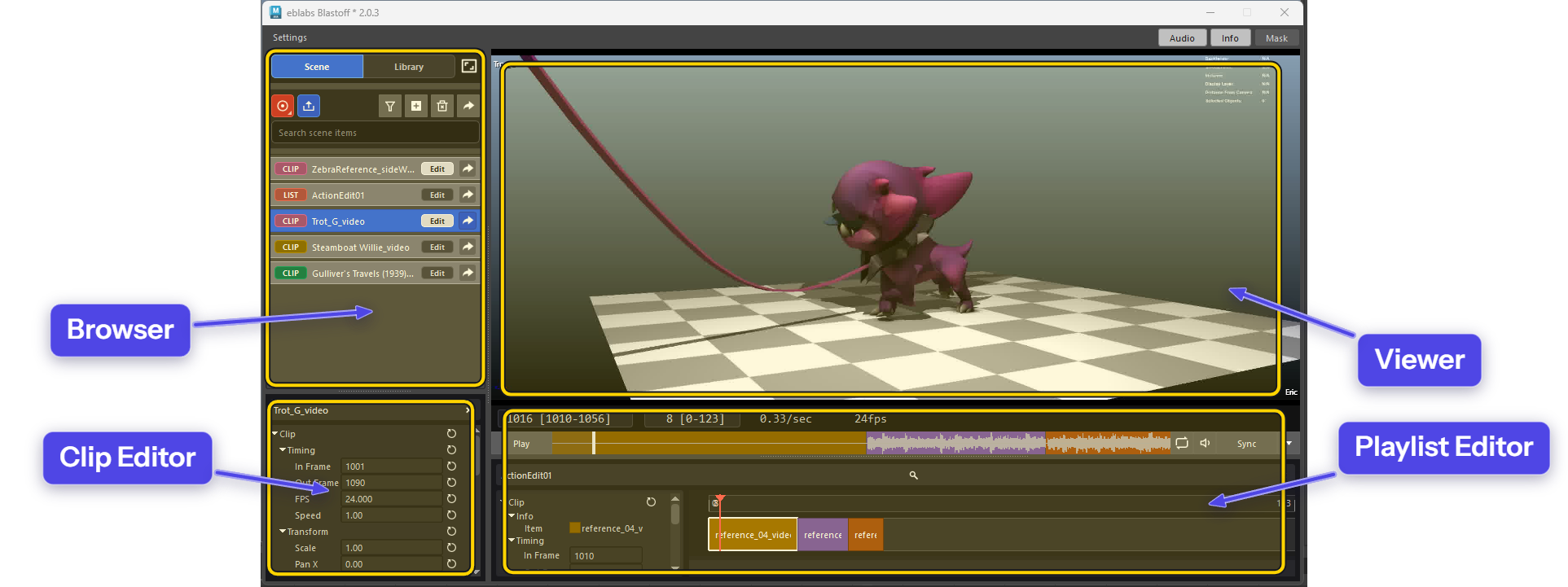
| Panel | |
|---|---|
| Browser | Find, organize, record, and import media. |
| Viewer | Play, scrub, and review the selected clip or playlist. |
| Clip Editor | Non-destructive timing, framing, crop, stabilization, and sync edits. |
| Playlist Editor | Assemble clips into a review sequence. |
Panels can be resized to suit your workflow.
Playback
Select a clip to load it in the Viewer. Dragging the timeline updates the video immediately with audio.
Controls include play/pause, scrubbing, frame stepping, looping, In/Out points, timeline markers, syncing, and volume.

Scene and Library
| Scene / Library Tab | Clip Actions |
|---|---|
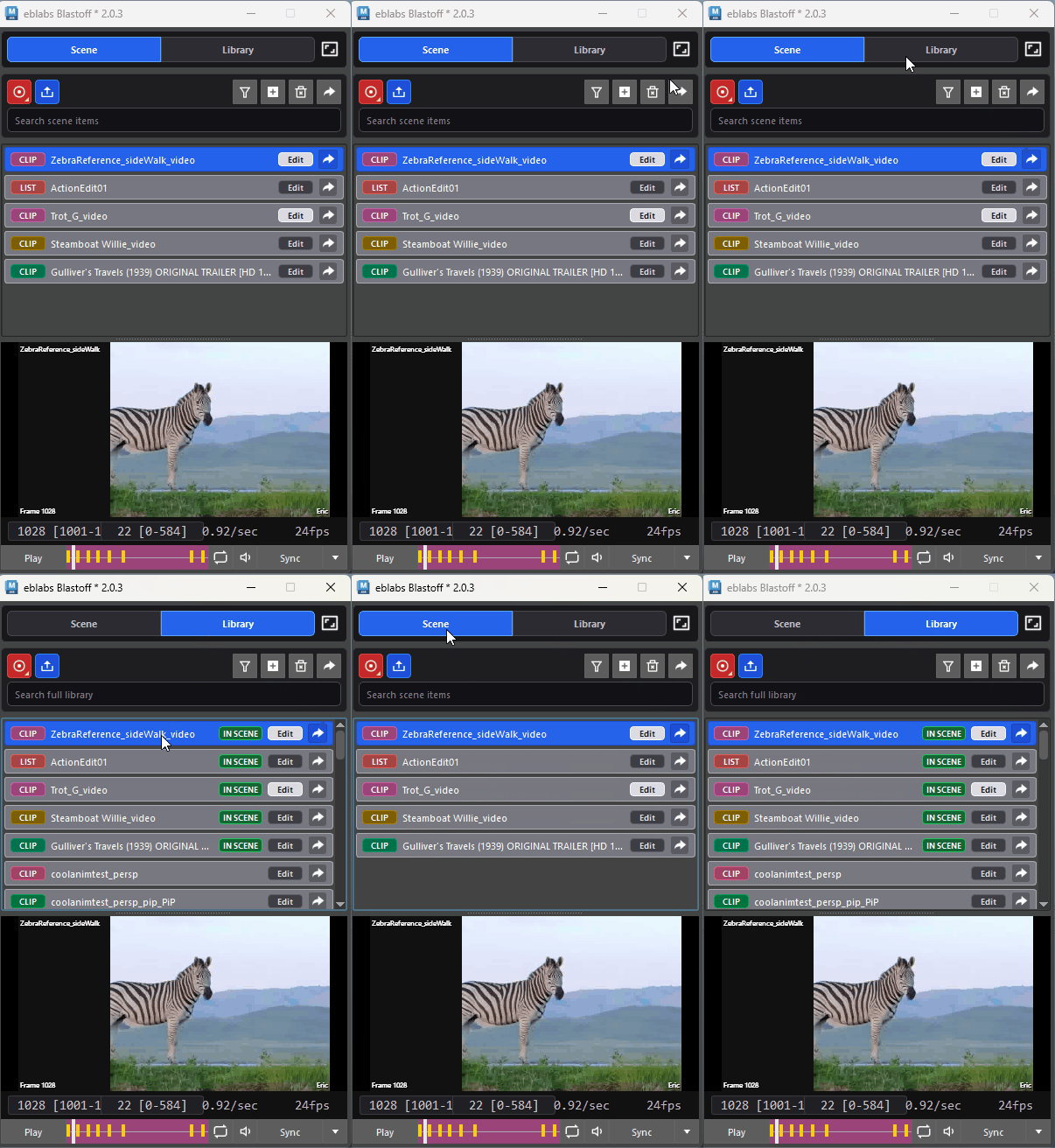 |
Check the Media tab to see media tied to the open Maya scene. Thes items are saved with the scene and restored when reopened. This and everything else is in the Library tab. |
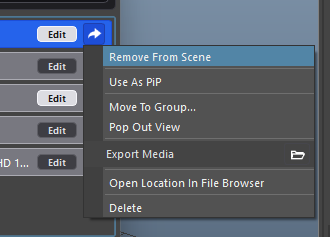 |
Check here for various clip actions. |
Playblast and Import

Playblast captures the current Maya viewport. Choose a resolution from the menu, with optional Motion Blur and Picture in Picture. The result is added to the current Scene automatically, ready to review.
Playblast Options
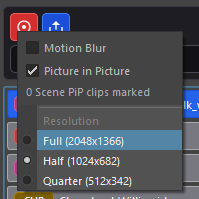
- Motion Blur, Turn on/off motion blur (0.5 shutter, frame centered, x10 samples)
- PIP, any clip in your scene marked as PIP will be used to generate an extra picture-in-picture version
- Resolution, set your playblast resolution here

Import adds existing video files, such as reference, which play back with the same tools as playblasts.
Maya Timeline Sync
With Sync on, the Maya timeline and the video stay linked. Click the Sync button to connect the current maya and clip frames.
Instead of Image Planes you can have as many of these as you like in your scene.
Clip Properties
Lightweight, non-destructive adjustments for review. Make your changes and see your edits live, no rendering needed.
| Section | Description |
|---|---|
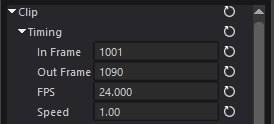 |
Timing In frame, Out frame, frame rate, playback speed. |
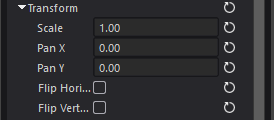 |
Transform Zoom, horizontal position, vertical position, mirroring. |
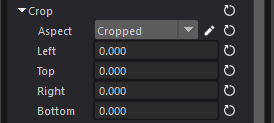 |
Crop Aspect ratio override or custom crop. Crop Edit adjusts directly in the Viewer. |
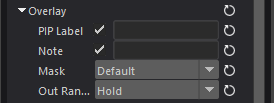 |
Overlay Add notes that appear in corners of the image. Useful for client submissions. |
 |
Stabilize Keyed stabilization points for cleaning up handheld or moving reference. |
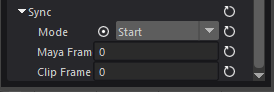 |
Sync Some settings around how the clip can be syncronized to the maya timeline. |
Stabilization
Simple stabilization can be added using keyed stabilization points.
This can be useful for cleaning up handheld or moving reference footage before animation review.
Playlists
Drag clips from the Browser into the Playlist Editor to build a sequence. Clips can be reordered, trimmed, cut, removed, and adjusted individually, then played back as one continious clip. Pop out views, and syncing works in the same way as individual clips.
Playlist Tips
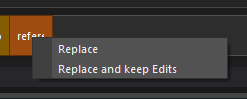
- Replace, Drag and drop a clip into the center of an item on the timeline to replace a clip. Helpful for updating a context edit with new animation.
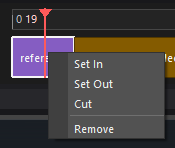
- Right Click, Check the right click menu for a few extra tools.
Picture in Picture
Mark Scene media for Picture in Picture to show reference or another version alongside the main animation. It can be used when creating playblasts and when exporting.
- Import reference video
- Set Sync Frame
- Optionally use a Pop out View while working
- Assign as a PIP source in your Scene tab
- Enable PIP in your playblast settings
- Click Playblast
Export
Export review setups as standalone video files:
- Export Media
- Render Playlist to Clip
- Grid Export
- Picture in Picture Export